Anil Dhawan

Edit Template
Compound interest formula in excel with Examples

Compound interest formula in excel with Examples

Learn Excel to Calculate Compound Interest with Practical Examples and Real-World Applications to grow Financial Analysis Skills.

Calculating compound interest is crucial for effective financial analysis, as it impacts personal finance, investment planning, and business decisions. Microsoft Excel simplifies these calculations, allowing you to forecast your future savings, visualise growth, evaluate investment returns, and plan financial strategies with accuracy.

In this article, you’ll learn multiple ways to calculate compound interest in Excel—from basic to advanced formulas & techniques. Our Advanced Microsoft Excel Certification course expands on these methods to improve your accuracy and efficiency when analyzing financial data.

What Is Compound Interest?

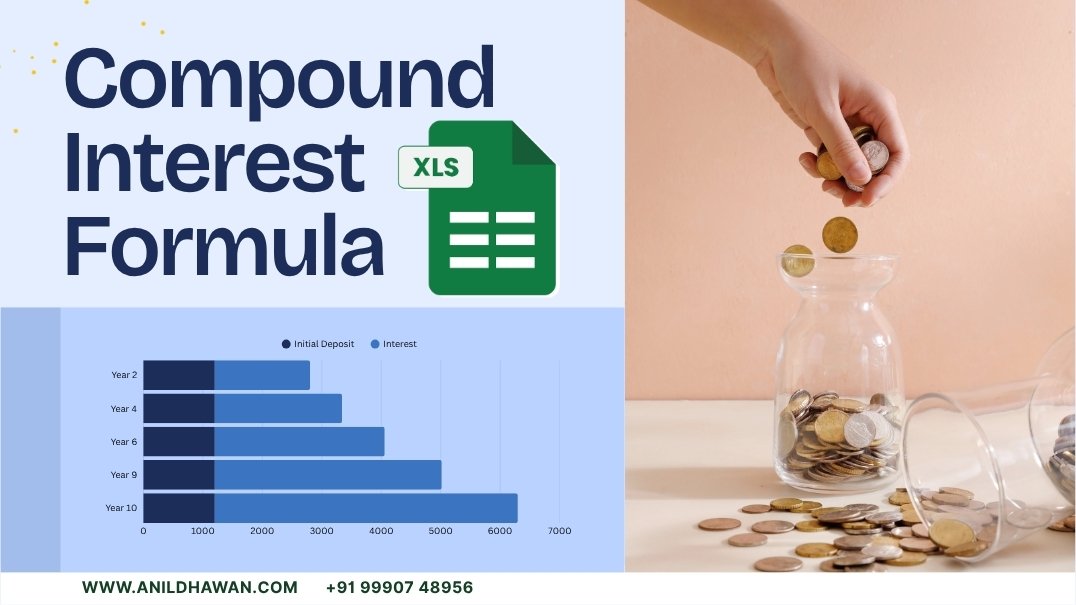
Compound interest shows how your money can grow exponentially over time. While simple interest, which increases at a constant rate, compound interest accelerates because interest is added to the principal in each period, creating interest on interest.

This is why calculating compound interest in Excel is crucial for accurate financial analysis and forecasting

The Compound Interest Formula

The standard compound interest formula is:

A=P×(1+n/r)n×t

Where:

  • A = Final amount including interest

  • P = Principal amount

  • r = Annual interest rate (decimal)

  • n = Number of compounding periods per year

  • t = Number of years

How to Calculate Compound Interest in Excel

Calculating compound interest in Excel is very easy once you set up a clean, organized spreadsheet. Follow these steps to implement the formula effectively and improve your financial analysis skills.

Step 1: Set up your spreadsheet – Create a simple structure with clearly labeled cells for each variable:

  • Cell A1: Principal Amount
  • Cell A2: Annual Interest Rate
  • Cell A3: Compounding Periods per Year
  • Cell A4: Time (Years)
  • Cell A5: Final Amount

Step 2: Enter your values – Input the corresponding values in column B:

  • Cell B1: Enter your principal amount (1000)
  • Cell B2: Enter the annual interest rate in decimal form (0.05 for 5%)
  • Cell B3: Enter the number of compounding periods per year (12 for monthly)
  • Cell B4: Enter the investment duration in years (e.g., 5)

Once you’ve filled in these details, your Excel sheet will be structured and ready for the compound interest calculation.Setting up the data, in Excel sheet should look like

To calculate compound interest, enter the formula in cell B5:

Compound intrest formula Applied on excel sheet

The formula above calculates the final amount after compound interest based on the equation above.

calculates the final amount after compound interest

Calculating Compound Interest with FV Function

It is possible to calculate compound interest manually, but Excel makes it much easier because it offers built-in financial functions. One of the most powerful tools is the FV() function (Future Value), which helps you calculate compound interest efficiently, for regular payments and investments.

The FV() function formulas for Excel is:

=FV(rate, nper, pmt, [pv], [type])

Where:

  • rate – The interest rate for each period.

  • nper – Total number of payment periods.

  • pmt – Payment made each period (leave 0 if not applicable).

  • [pv] – Present value or initial investment (optional).

  • [type] – When payments are due: 0 = end of period, 1 = beginning (optional).

Example: 

Let’s modify our spreadsheet to use the FV() function in cell B6: =FV(B2/B3, B3*B4, 0, -B1)

Calculating compound interest using FV(). Calculating compound interest using FV().

The calculated compound interest as below:

Compound interest using FV()

Using PMT() Function

The PMT() function used in Excel helps you calculate loan payments based on fixed interest rates and consistent payment amounts. While it’s commonly used for loans, you can also use it for compound interest calculations to determine how much you need to contribute regularly to reach a specific financial goal.

The PMT() function is:

=PMT(rate, nper, pv, [fv], [type])

Where:

  • rate – The interest rate for each period.

  • nper – Total number of payment periods.

  • [pv] – Present value

  • [type] – When payments are due: 0 = end of period, 1 = beginning.

  • fv: Future value you want to reach

Let’s add this to our spreadsheet:

  • Cell A7: “Target Amount”

  • Cell B7: Enter your target amount (5000)

  • Cell A8: “Required Monthly Payment”

Type the following in cell B8: =PMT(B2/12, B4*12, -B1, B7)

Calculating compound interest using PMT()

  •  

The Final Calculated monthly payment: -54.65

Excel’s PMT() function returns a negative value by default, as it was designed from a cash flow perspective:

  • Negative values represent money that you pay out
  • Positive values represent money that you receive

Loan Calculation in Excel

Compound interest isn’t just useful for saving money — it also plays a key role in loan calculations. When you take a loan, interest compounds on the remaining balance, increasing the total amount you’ll pay back.

With Excel’s built-in financial functions, you can easily analyse different loan scenarios, calculate monthly EMIs, and calculate the total amount paid in interest over the period of the loan.

=PMT(interest_rate/12, loan_term*12, -loan_amount)

Loan Clacluation in excel

Compound interest isn’t just useful for saving money — it also plays a key role in loan calculations. When you take a loan, interest compounds on the remaining balance, increasing the total amount you’ll pay back.

With Excel’s built-in financial functions, you can easily analyse different loan scenarios, calculate monthly EMIs, and calculate the total amount paid in interest over the period of the loan.

=PMT(interest_rate/12, loan_term*12, -loan_amount)

Loan Clacluation in excel

Advanced Compound Interest Techniques

Once you understand the basics of the compound interest formula, you can explore advanced compound interest methods in Excel for more accurate financial analysis. You can create a model with multiple interest rates for different time periods based on these variables. Assuming that interest rates will rise by 0.5% every five years, set up the following table:

1. Variable Interest Rates

In real-life scenarios, interest rates often change over time — for example, in adjustable-rate mortgages or market-linked investments. You can easily handle this in Excel by applying different interest rates for each period.

=Previous_Amount*(1+Intrest_Rate)

We can build a flexible model that applies different interest rates for different time periods. For instance, let’s create a variable interest rate table where the interest rate increases by 0.5% every 5 years.

Varying interest rates calculations.


After selecting Years 1–2 and dragging down, we can extend the table to the number of years we want, modifying interest rates as required:


Varying interest rate calculator

2. Compounding Frequency

Financial products don’t always follow the standard yearly compounding rule. Some investments compound quarterly, others monthly, and a few even daily. These differences can significantly impact the total return over time.

In Excel, you can modify the n value in the formula to reflect different compounding periods:

A=P×(1+nr)n×t

For example, if the annual rate is 6% and you compound monthly, divide the rate by 12 and multiply the time by 12.

The Excel comparison table can even show how different frequencies impact total earnings, which is useful for both investors and financial students.

Conclusion

Excel is a powerful tool for calculating compound interest, empowering you to make smarter financial decisions, whether you’re planning investments, comparing loan options, or analysing savings growth. With tools like the FV() and PMT() functions, Excel makes financial calculations easier. Using advanced techniques like variable interest rates, continuous compounding, and dynamic modelling, you can simulate real-life financial scenarios accurately.

Excel not only saves time but also enhances accuracy, making it an indispensable tool for students, professionals, and anyone managing finances. The more you experiment with these formulas, the deeper your understanding of how compound interest truly impacts financial growth over time.

Faq-

What is the easiest way to calculate compound interest in Excel?

Use the FV() function for easy calculations. To get an instant future value, add the rate, periods, payments, and principal.

How do I calculate cumulative interest in Excel?

The cumulative interest can be calculated using the formula:
=Cumulative Interest = FV() - Principal

Can Excel handle variable interest rates for compound interest?

Absolutely. Divide the table into rows by periods, each with a separate rate, and use formulas to calculate interest changes over time.

Similar Posts

Leave a Reply

Your email address will not be published. Required fields are marked *

Table of Contents